Odoo barcode labels, free to start.
Barcode Label Printing is a free app that prints product, lot and transfer labels from Odoo's Print menu onto A4 and US Letter sheets, including Avery formats. When the fixed layout is not enough, Label Designer lets you draw your own inside Odoo.
Start with the free app. If you outgrow its layout, add Label Designer; the free app does not depend on it, and both can sit in the same database.
Barcode Label Printing
Select products, a transfer or lots, then Print → Barcode Labels. Choose a format, tick what goes on the label, and print or download the PDF.
View on the Odoo App Store ↗Label Designer
A label canvas inside Odoo with a live preview rendered by the server. Each template you save appears in the Print menu of the records it is for.
View on the Odoo App Store ↗Prices as the Odoo App Store shows them to a signed-out visitor on 21 November 2026. Both are listed for Odoo 19 and 20, and run on-premise or on Odoo.sh; Odoo Online does not accept custom modules.
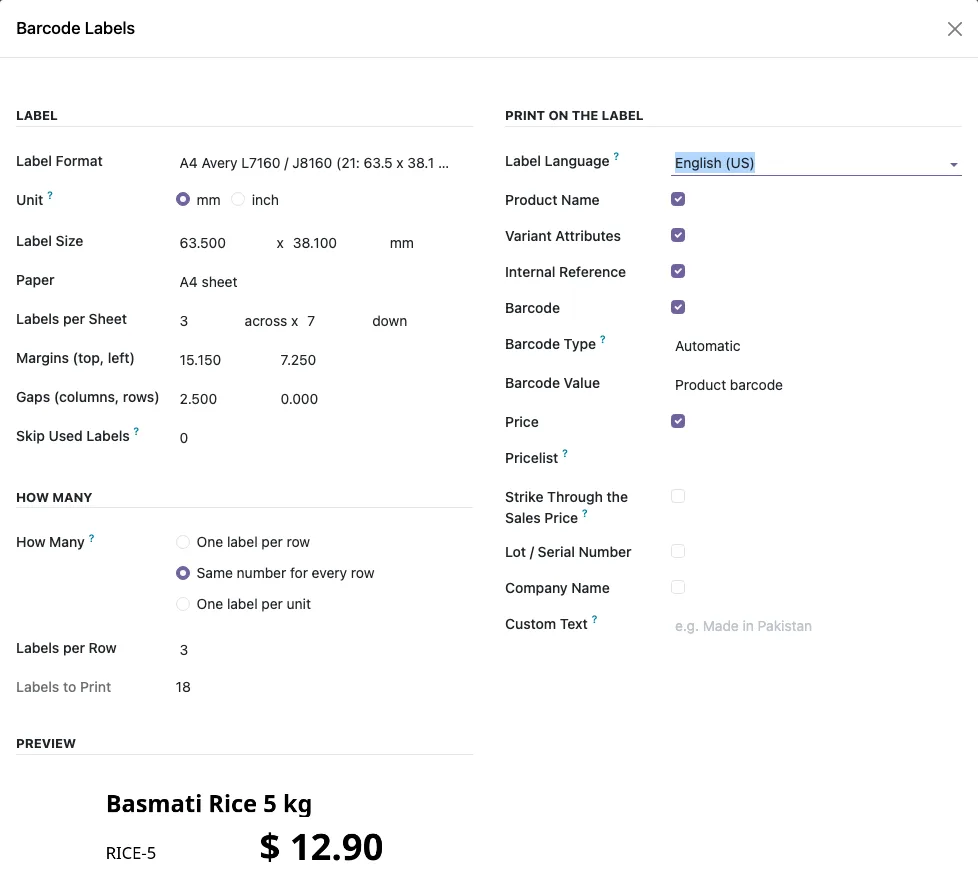
Pick a format, tick what to print.
We selected six test products and opened Print → Barcode Labels. Choosing A4 Avery L7160 fills in the label size, the grid and the margins; the rest is ticking what goes on the label and how many of each.
Prices can come from a pricelist with the sales price struck through, and Skip Used Labels starts on the next free position of a sheet you have already started.
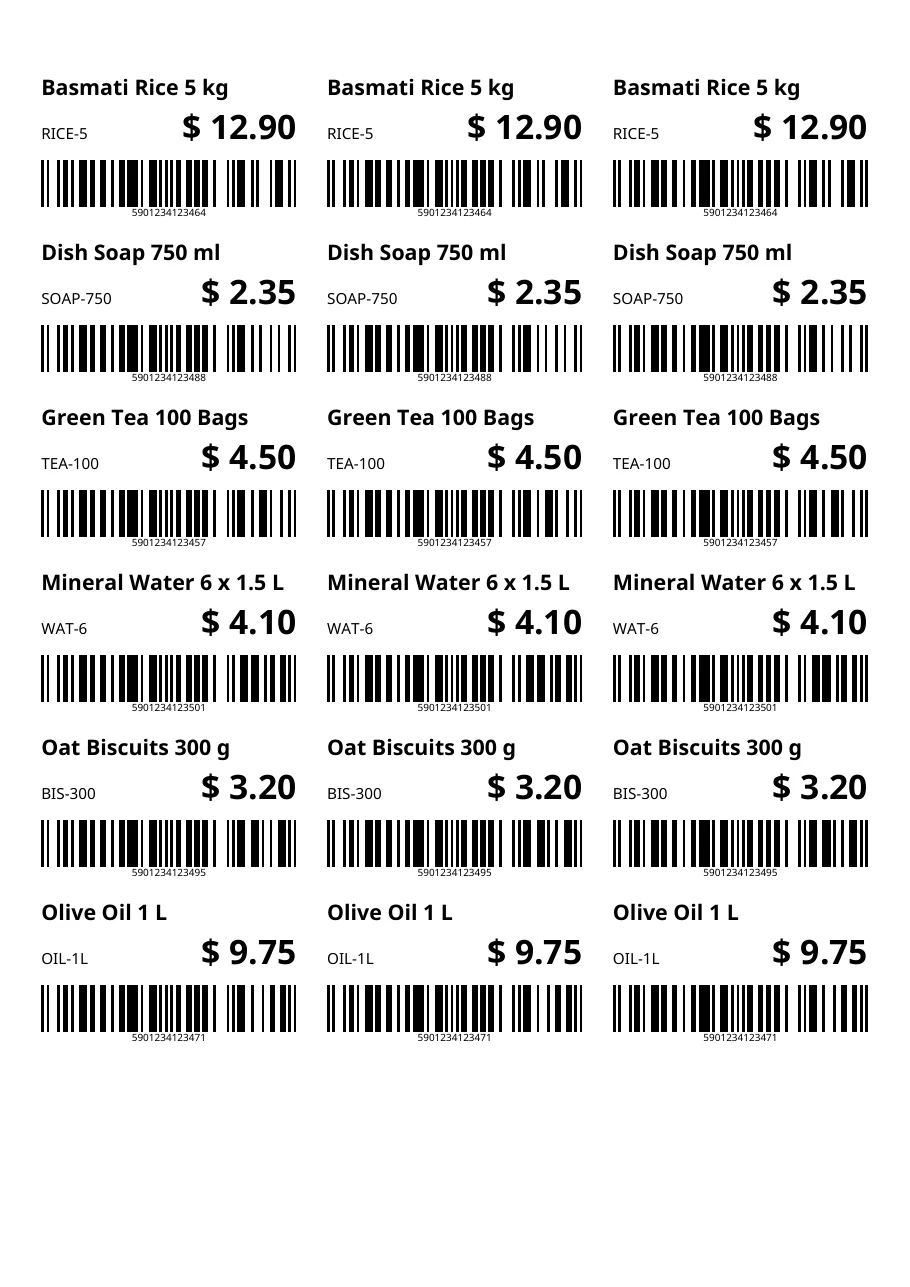
18 labels on one A4 sheet.
This is the PDF the free app produced, unedited: an A4 page laid out to Avery L7160’s published size of 63.5 × 38.1 mm, three across and seven down.
Download the sample PDF (34 KB) ↓
We have not printed it on Avery stock. Print at 100% (actual size), first on plain paper, and hold it against a label sheet: printers feed paper slightly differently, and the margins can be adjusted.
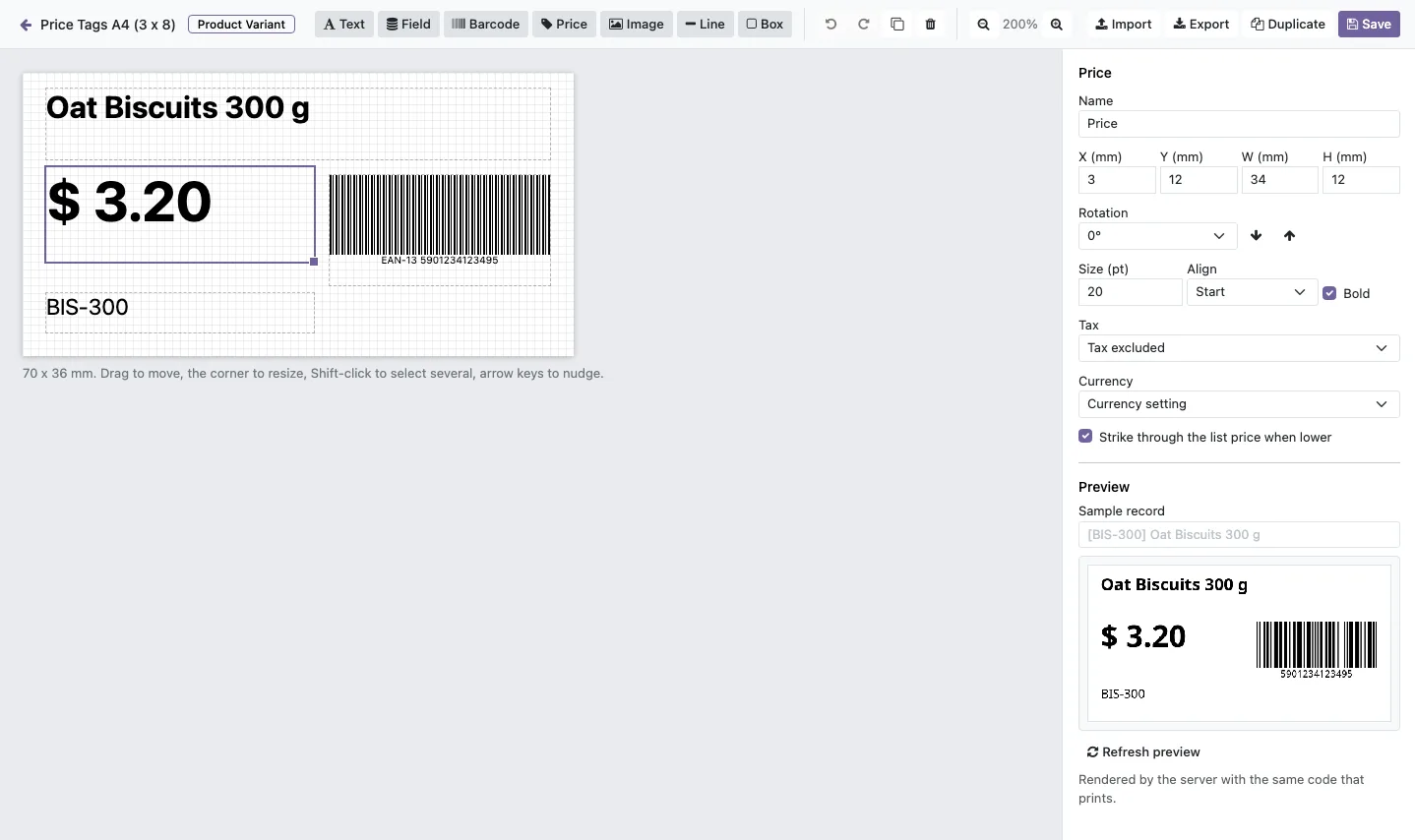
Draw the label in millimetres.
Drag, resize and nudge elements on a millimetre grid, and set each one’s content in the panel: a field picked from the record, a barcode, a price from a pricelist with tax included or excluded. The preview underneath is rendered by the server with the same code that prints.
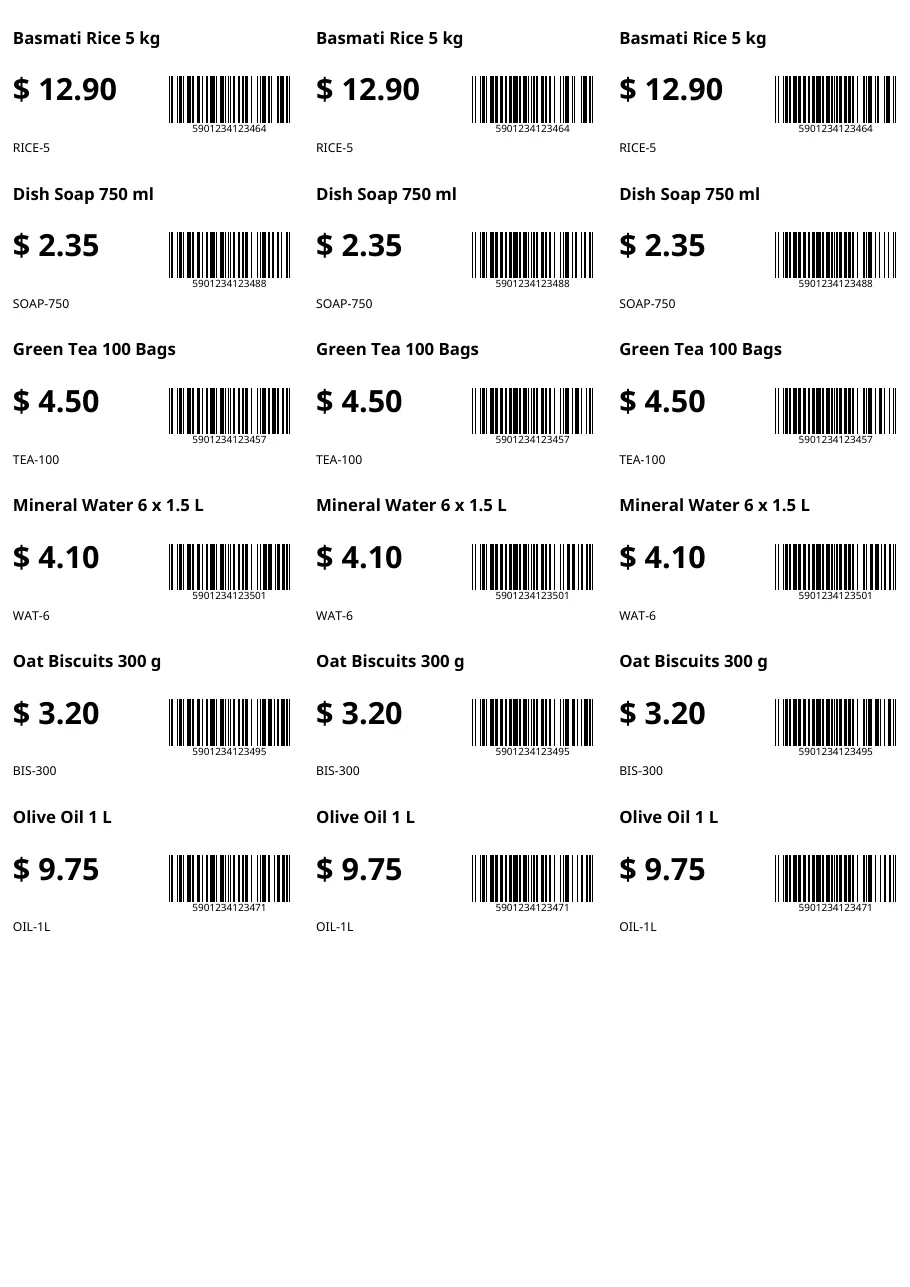
The same products, in a layout of your own.
Saved templates appear in the Print menu. This sheet comes from the ready template Price Tags A4 (3 x 8): 70 × 36 mm tags on a plain A4 sheet. It is not laid out to an Avery product code, and Label Designer ships no Avery template; for Avery sheets, set the sheet size on the template or use the free app.
| Barcode Label Printing · free | Label Designer · $49.00 | |
|---|---|---|
| Layout | A fixed layout that adapts to the label size. You tick what goes on it: name, variant, reference, barcode, price, lot, expiry, company, a line of your own. | Your own layout, drawn on a canvas in millimetres or inches: text, fields, barcodes, prices, images, lines and boxes. |
| Print from | Products, product variants, transfers, and lots and serial numbers. | The same, plus packages, locations, and manufacturing orders when Manufacturing is installed. |
| Barcodes | EAN-13, EAN-8, UPC-A, Code 128 and QR. | Also Code 39, ITF-14, GS1-128, Data Matrix and GS1 Data Matrix. |
| Sheets | 24 ready formats, including 9 A4 Avery and 5 US Letter Avery sheets, or any size you enter. Skip labels already used. | Each template has its own sheet: A4, Letter or custom, with columns, rows, margins and gaps. Skip labels already used. |
| Templates | One built-in layout. | Six ready templates to copy, and export or import any template as a file. |
| Price | Free. | $49.00 per database. |
Checked
- Both sample PDFs generated on 21 November 2026 on Odoo 19 Community, from Barcode Label Printing 19.0.1.0.1 and Label Designer 19.0.1.0.2, through the Print menu of the product list.
- Each is a one-page A4 PDF with 18 labels for six test products.
Not checked
- Printing either sheet on physical Avery or other label stock.
- Reading the printed barcodes with a scanner.
Orders and cash or cheque collections booked on the phone with no signal, then invoiced and posted in Odoo.
Read the guide →POS closing and cash auditVoided lines and deleted orders logged, cash withdrawals booked to their own account, and the drawer difference on a report.
Read the guide →